How It Works & FAQ
Create and send professional digital invitations in minutes.
Step-by-Step Guide
1 Create Your Event
Enter your event title, date, and description (which can include manual RSVP details). This information will appear directly on the card.
2 Choose a Design
Select from our curated backgrounds. The fonts and colors will automatically adjust to match the theme.
3 Add Your Guests
After event creation you can enter the names and email addresses of your guests. We'll generate a unique RSVP link for every person on your list.
4 Send & Track
Click "Email All Guests" to send the invites. Watch your dashboard for real-time updates as guests accept or decline. They can also use the link to change their minds.
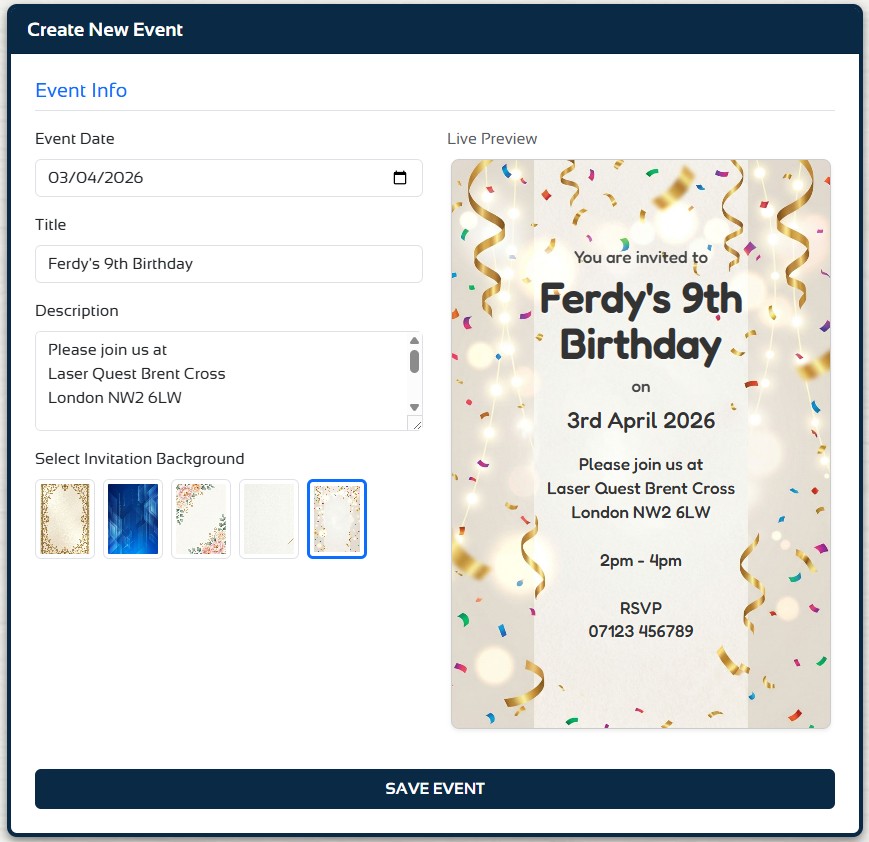
Example of the invitation designer and background selection.
- Account Creation: To begin, click "Signup". You must provide a valid email and solve a captcha to prevent bot abuse.
- Verification: After signing up, check your inbox. You cannot log in until you have clicked the verification link sent to your email.
- Add Event: Once logged in, click Add Event to create your first event. After creating you can start adding guests.
- Live Preview: As you type your event details, the preview on the right updates instantly so you can see exactly what your guests will see.
- Backgrounds: We offer various themes including Classic, Modern, Floral, and Minimal. Each theme comes with its own unique font pairing.
- Responsiveness: Our invitations use "Container Queries," meaning they look great on everything from a massive desktop screen to a small smartphone.
- Guest Limits: You can add up to 25 guests per event.
- Unique Tokens: Every guest gets a unique, secure link. They don't need to log in or create an account to RSVP.
- Manual Overrides: If a guest tells you their response in person, you can manually click the "Accept" or "Decline" icons in your dashboard to keep your numbers accurate.
- Email Delivery: Emails are sent via our secure server. Ensure your guests check their "Promotions" or "Junk" folders if they don't see the invite.
- Data Privacy: We never share your guest list or email addresses with third parties. They are used strictly for sending your invitations.
- Account Security: Your events are private. Only you can see your guest lists and response rates when logged into your account.
Ready to start? Create Your Free Account